Start with Want to buy
Your permanent default list keeps bottles you are considering. Add a note about why each wine caught your attention and mark High priority when it matters.
Save a bottle now. Decide over a glass later. Wine Lists are your private wine wishlist in Sommo Pro, on the web, iPhone, Android and HarmonyOS.
Save a bottle now. Decide over a glass later.
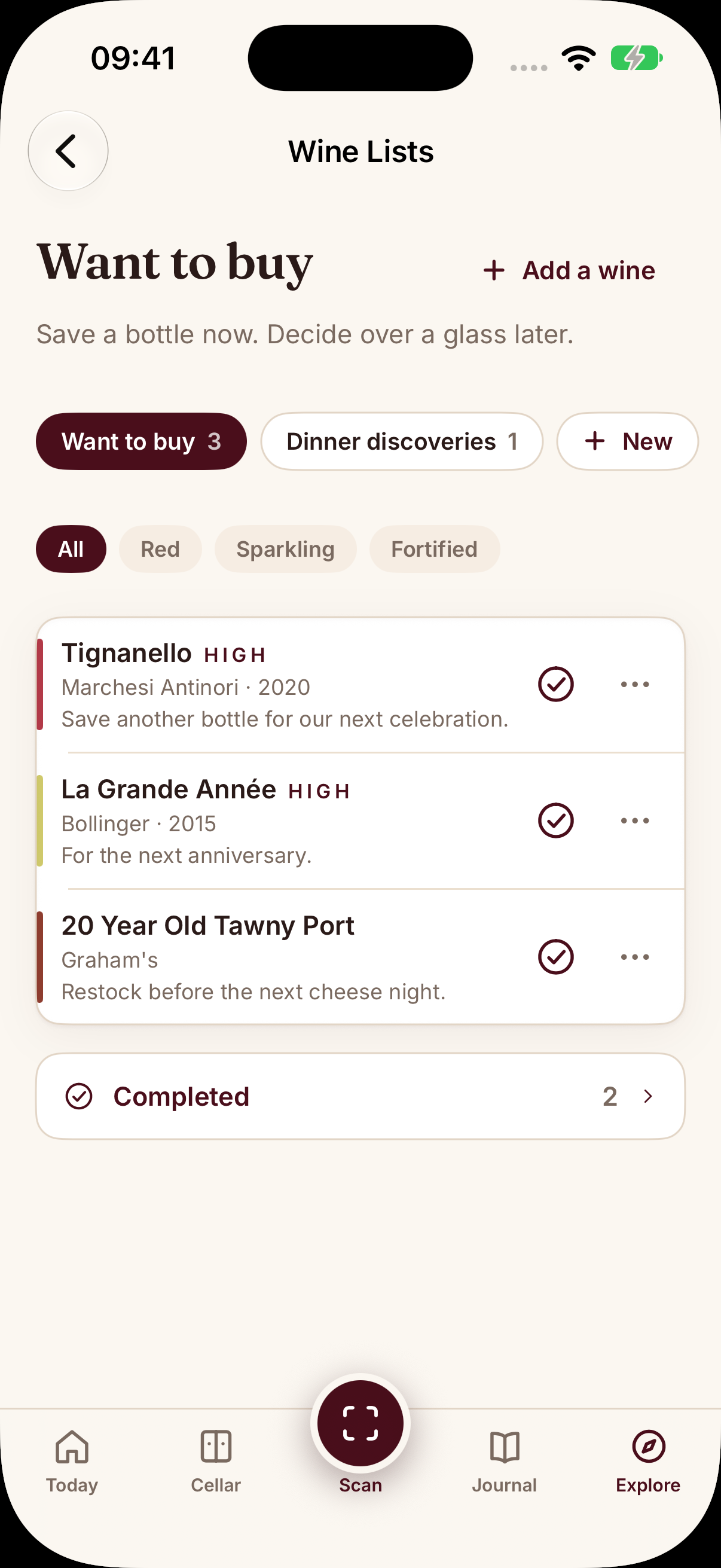
Your permanent default list keeps bottles you are considering. Add a note about why each wine caught your attention and mark High priority when it matters.
Create custom lists for dinners, trips or dream bottles. The same wine can belong to more than one list, and you can rename or delete custom lists.
Use Found it to mark bottles Bought or Tried. Completed keeps their history, with the option to add a bought bottle to your cellar or prefill a journal entry for a wine you tried.
Use Wine Lists on the web, iPhone, Android and HarmonyOS. Visit web.sommo.app/lists or open Explore, then Wine Lists, in the Sommo app. Reading and editing both need Sommo Pro.
From a list, scan a wine, add it by name or select several wines from your recent scans and library. On iPhone, the List picker defaults to Want to buy when you save, and you can choose another list. On the web, saving from a wine page always adds it to Want to buy; add a wine from inside another list or move it there later.
Tap Found it to mark the bottle Bought or Tried, or keep it on the list. Bought and tried bottles stay in Completed, and you can undo actions and restore items.
A friend mentions a bottle over dinner. You remember the producer, perhaps the vintage, and mean to look for it next time you are in a wine shop. By then, the name is buried in a message or a photograph you cannot find.
I built Wine Lists to give that bottle somewhere to go. They are private lists for wines you want to buy, try or remember, available with Sommo Pro on the web, iPhone, Android and HarmonyOS. Open Explore, then Wine Lists, in the Sommo app, or visit web.sommo.app/lists.
Everyone starts with Want to buy, a permanent list that cannot be deleted. Saves go there by default, so you have a place for a recommendation before deciding what to do with it.
Your Want to buy wine list can hold a bottle you are actively looking for alongside something you are simply curious about. Saving it does not have to mean you have decided to buy it. Add a note to explain why it caught your attention, then come back when you have a reason to choose.
I think of this as the useful gap between hearing a wine’s name and having a glass in front of you. You can remember the possibility without making the decision yet.
Use + New to create a wine list for a particular dinner, a trip or dream bottles you would like to try someday. A list called “Dinner discoveries” gives those recommendations a little more context than a collection of names.
The same wine can sit on more than one list. A bottle might belong on Want to buy and on a dinner shortlist because both reasons still matter. There is no cap on the number of lists or wines per list.
Custom lists can be renamed or deleted, with names up to 80 characters. If you delete a custom list, its wines move to Want to buy. Your Wine Library keeps every wine, so removing the list does not mean losing the bottles you saved.
From the list itself, choose Add a wine. You can scan a wine, add it by name, or pick from your recent scans and library. You can add up to 100 wines in one go. Wines already on that list are left out of the picker.
On iPhone, the List picker defaults to Want to buy when you save a wine, and you can choose another list. On the web, saving from a wine page always adds it to Want to buy. To use another list on the web, add the wine from inside that list or move it there later.
Wine scanning is useful when you have the bottle in front of you. Adding by name gives you a way to keep a recommendation when you have only heard about it.
Each saved wine can have an optional note of up to 1,000 characters. Write down who recommended it or why you want to try it. Mark a favourite prospect High priority, shown as HIGH, when you want it to stand out.
Use Search this list to find a saved wine, or filter by red, white, rosé, orange, sparkling, dessert or fortified.
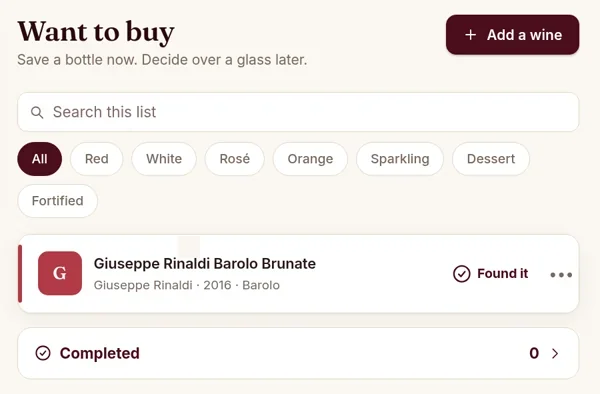
Tap Found it when you catch up with a saved bottle. You can mark it Bought or Tried, or keep it on the list if you are still considering it.
Bought can also add the bottle to your cellar inventory. If you only want to record that you bought it, you can mark the list item without adding it to the cellar.
Tried can prefill a tasting entry in your wine journal, giving you a starting point for recording what you thought of the glass.
Completed keeps the bottles you bought or tried, so the history stays. You can undo actions and restore items.
When you look at a wine already on a list, Sommo shows “On your Want to buy list” (or whichever list holds it). If a similar wine has a different vintage, it warns: “The vintage is different, so this may not be the same bottle.”
If you are looking for a wine list app to photograph a restaurant’s menu and score its wines, that is Score Menu. With Sommo Pro, Score Menu gives every wine it reads on the list a quality score. Wine Lists hold your own saved bottles.
They are also private to you. You can use a custom list to plan bottles to buy or try before a dinner, but it does not provide a guest share link or a printed menu. For the list you put in front of your guests, follow How to make a wine list for dinner guests.
Start with the bottle you have been meaning to look up. Save it to Want to buy and leave yourself a note about why it belongs there. You can decide what comes next when you find it.
Open Wine Lists on the web, or get the app to use Wine Lists on iPhone, Android and HarmonyOS. Lists are part of Sommo Pro.
Save the next recommendation in Want to buy, then decide when you find it. Wine Lists work on the web, iPhone, Android and HarmonyOS, with Sommo Pro required to read and edit your lists.
Use Sommo on this computer
Open Sommo in your browserFree, nothing to install. Same account as the phone app.
Or on your phoneOr in your browser


