Treat a scanned wine receipt as a proposed purchase record. Check every wine line against its units, vintage, format and currency before accepting it. A legible invoice can still be ambiguous: “2” might mean two bottles or two cases, and a line total might include a discount that the price field has missed.
The finished job is a set of explainable bottle records and a retained invoice. It is not simply a screen full of plausible wine names.
What a receipt scanner does, and what you must review
InVintory’s official receipt guide, checked on 10 October 2026, documents Premium scanning on iPhone, iPad and web. It accepts PDF, JPG or PNG and presents a purchase for review. Check the current device and subscription before relying on that route; the page does not establish an Android receipt-scanning workflow.
The help asks you to check identity, vintage, format, location, unit price and quantity. Unmatched items need attention. It also describes omitted non-wine lines and warns that rescanning replaces previous scan edits. Save your review notes before starting again.
These are documented behaviours, not a measured comparison of recognition accuracy. A scanner can reduce typing while leaving the important decisions with you.
First establish what each quantity means
Take this invented invoice, in pounds sterling. Prices include the assumptions shown; it is not a real merchant order.
| Invoice line | Printed quantity | Wine bottles represented | Amount attributable to wine |
|---|---|---|---|
| Alder Estate red 2022, 6 × 750 ml | 2 cases | 12 standard bottles | £180 |
| Alder Estate red 2022, 1.5 litre | 1 bottle | 1 magnum | £28 |
| Delivery | 1 | None | £8 |
The first line gives a £15 bottle price: £180 divided by twelve. Dividing by the printed quantity of two would produce £90, which is a case price. The magnum is a different format, not two extra standard bottles. Delivery is a purchase expense, not a wine item.
Write the unit conversion beside the line before importing it. If the invoice says only “case”, ask how many bottles and what sizes it contains. Mixed cases need their individual contents, rather than one invented wine multiplied by the case count.
Match the wine without borrowing missing details
Check producer, cuvée, appellation, vintage and format. Compare the invoice with the bottle when available, especially where a merchant has substituted a vintage or abbreviated a name.
An invoice dated 2026 does not prove the wine is vintage 2026. NV is not an error that needs a purchase year inserted. If a format is missing, do not default to 750 ml simply because most of the order uses it. Our label-scanning guide covers checking the physical identity when a suggested match is close but incomplete.
Keep a row unresolved when the evidence is insufficient. “Bottle size to confirm” is a useful instruction; a confident wrong size can distort both capacity and price comparisons.
Choose a cost rule you can explain later
A receipt can show a list price, line discount, order discount, tax, shipping and amount paid. Decide what your bottle purchase-price field represents. For example, you might record the wine line after its discount, while retaining delivery separately in the invoice.
For an order-wide discount, use a consistent allocation if you need bottle-level costs, and write down the rule. Do not distribute the same discount once across the order and again against each line. Keep currencies explicit: £15 and €15 are different records.
Check whether tax is already included before adding it. Do not force the wine rows to equal the invoice total by smuggling shipping into an extra bottle. The reconciliation should explain the difference, not hide it.
A short acceptance sheet
| Status | Use it when | Next action |
|---|---|---|
| Accept | Identity, units, format, currency and price rule agree | Save the checked row |
| Correct | The evidence is clear but a suggested field is wrong | Amend it and recheck the resulting quantity/cost |
| Hold | A vintage, pack size, substitution or amount remains unclear | Retain the invoice and confirm the detail |
| Exclude | The line is delivery, accessories or another non-wine expense | Keep it in purchase evidence, outside wine stock |
Before the final save, count the bottles represented by all accepted rows, inspect skipped lines and confirm that the purchase is not already recorded. Keep the original invoice unchanged, with any corrections in a separate note.
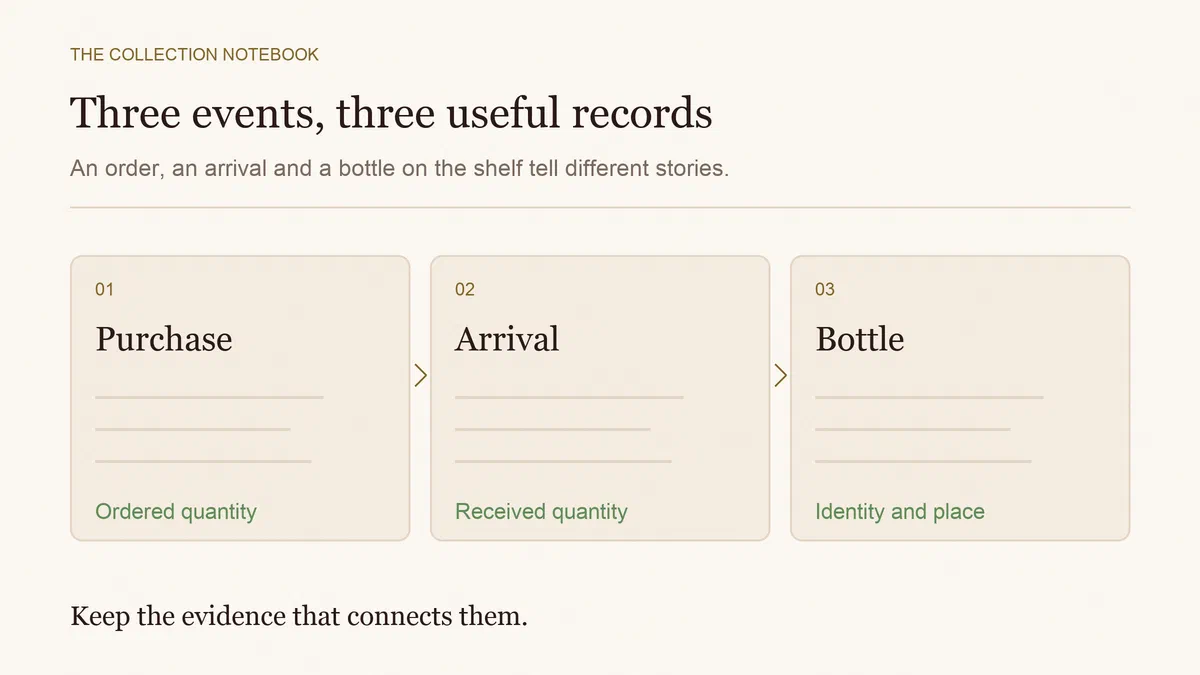
Arrival is a different question from invoice interpretation. Only add physically received bottles to current stock; keep unreceived orders separate in a delivery system or register. This checklist does not turn an invoice into proof that wine arrived.
When manual entry is the better route
For a short or unclear receipt, entering two checked rows can be quicker than repairing a long chain of assumptions. Use the same acceptance sheet whichever tool you choose.
Sommo’s label scanner helps identify a bottle; its CSV/XLSX importer is not a receipt-photo or PDF purchase scanner. If manual stock entry meets your needs, record the checked wine and received quantity in Sommo. Cellar management requires Premium. For spreadsheet preparation, the inventory template keeps wine identity and quantity visible before anything is added.