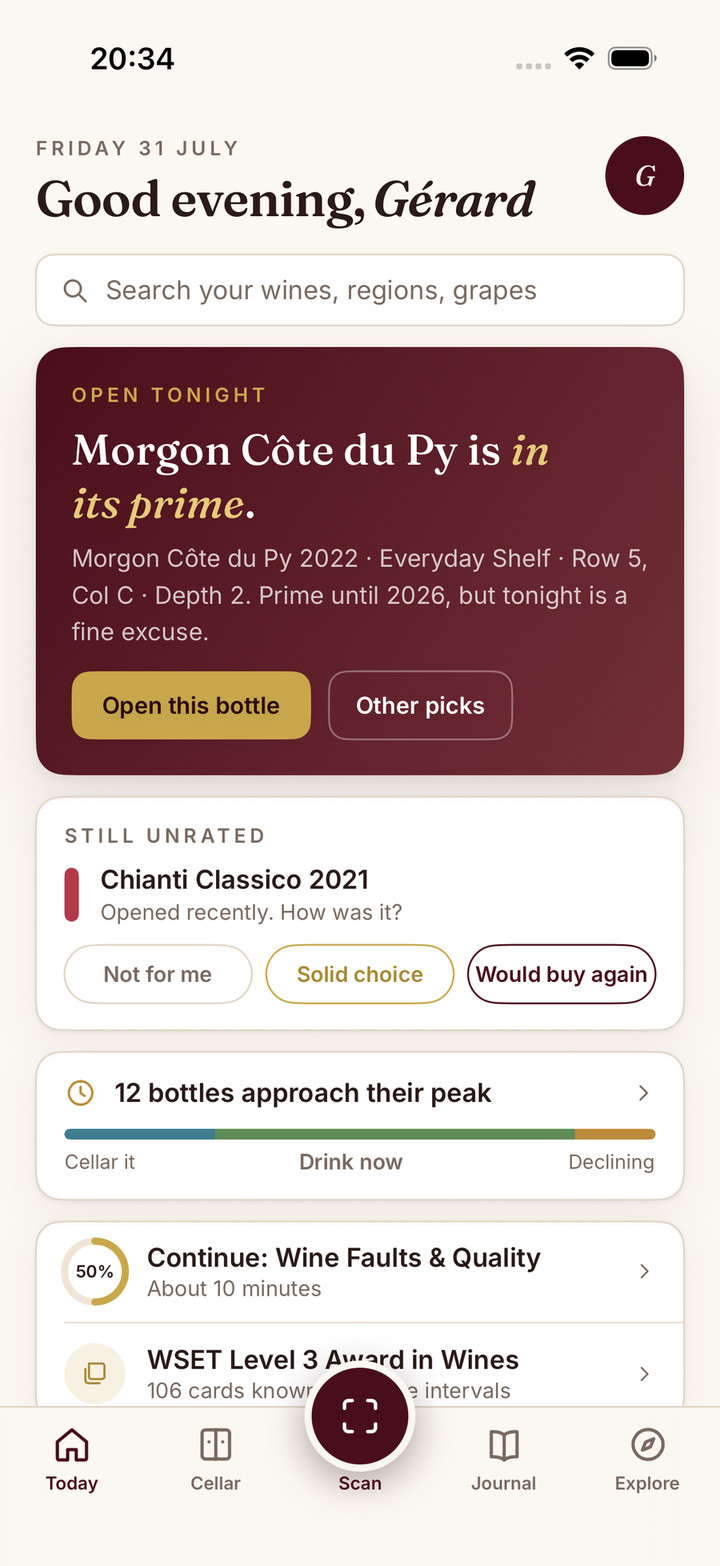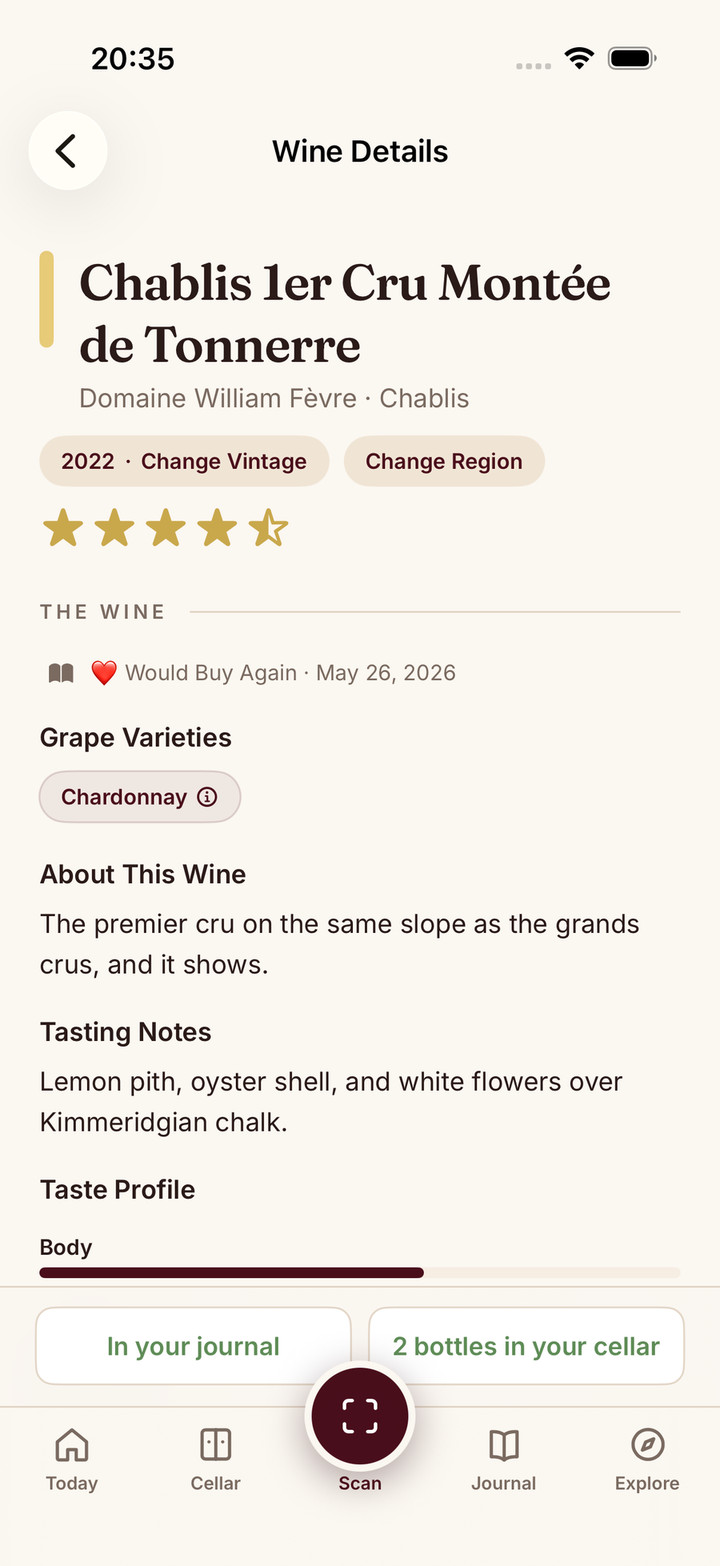
What you can do with Sommo in ChatGPT
I have connected Sommo so you can retrieve authorised wine history, review journal saves, add personal unplaced cellar bottles with Sommo Pro and use supported WSET Levels 1 to 3 study tools. Open the Sommo ChatGPT plugin to begin. Access follows your Sommo plan and permissions.
I want a conversation about a tasting to lead to a record you have checked. A proposed entry needs your review before it becomes something Sommo keeps. The connection overview sets out the supported scope.
Connect your Sommo account
1. Open the live plugin listing
Open the Sommo ChatGPT plugin and start the connection if it is available to your eligible ChatGPT account.
2. Sign in or create a Sommo account from ChatGPT
You can do either during connection. Use the Sommo account whose records you want to work with. If you already keep a journal in Sommo, check that you are connecting that account so the conversation can retrieve the intended records.
3. Check the account and permissions, then authorise
Read the requested permissions on Sommo’s consent screen and check the account shown before authorising. The connection gives access to supported records and actions within those permissions and your entitlement. Our privacy policy and terms explain the data flow and conditions.
Retrieve your wine history
You might ask: “Show wines I recorded recently.” You can then ask about those retrieved records without reconstructing every tasting from memory. Be specific about the period or wines you mean, and check which records the answer uses.
The free journal shows your last 30 days; older entries are hidden, not deleted, and come back with Premium.
The wine journal remains the place to inspect your saved tastings. A conversation works within the history available to your plan and the permissions you authorised.
Review a journal save
For example, ask: “Help me record this tasting.” Confirm the wine identity, then review the proposed date, rating and notes. Correct anything that does not reflect your experience before explicitly confirming the save.
Check the resulting record or receipt. A preview gives you a chance to review the effect; it does not mean the entry has been saved. I keep that distinction clear because a tasting note is personal. If you meant “earthy” rather than “oaky”, the saved note should say so. Saving a tasting does not add bottles to your cellar.
Add bottles to your personal unplaced cellar
With Sommo Pro, you might ask: “Help me add these bottles to my personal unplaced cellar.” Review the wine identity and quantity before confirming, then check the result.
“Unplaced” means the bottles have no rack position. The connection does not place bottles in racks, write to shared racks, consume stock or bulk import inventory. Use the cellar in Sommo for its supported wider controls. A bottle addition and a journal save are separate actions, even when they concern the same wine.
Use WSET study tools
You can work with grounded materials, editable roadmaps and practice for supported Levels 1 to 3, within your entitlement. Tell the conversation which level you are studying and which topics you want to revisit. Review a roadmap before agreeing to save it. Accepting a roadmap records intended study; it does not establish completed learning or exam readiness.
Confirm before starting practice and before submitting answers. Practice results are independent Sommo study records, without official WSET grading or certification. The WSET feature page covers the broader in-app offer. Level 4 stays in-app and CMS is outside the connection. Sommo is not affiliated with WSET or the operator of ChatGPT.
What stays in the Sommo apps and supported web features
Sommo’s apps and established web wine features use proprietary wine-tuned AI. ChatGPT handles the connected conversation; Sommo supplies authorised records and validates and saves supported actions. I explain the different roles in ChatGPT and Sommo.
Label scanning, Taste DNA, Score Menu, Scan Menu, menu and shelf camera scans, Ask Sommo, Mix Palate and Sharing Party remain in the apps, or on the web where already supported. The connection itself does not scan images. ChatGPT may interpret a supplied photo and ask you to confirm wine identity fields. Sommo web image input uses uploads, without a live camera.
Get Sommo for iPhone, iPad, Android, HarmonyOS or its established web features.
Free, Premium and Sommo Pro
Free connected accounts have wine identity search, tasting saves, recent journal access and Level 1 materials. Premium restores older journal access and covers WSET Levels 2 to 3. Chapter Drill and adaptive practice require Premium at every level. Free Level 1 materials do not make every practice mode free, and not every in-app mode is available through ChatGPT.
Cellar search, racks overview, personal unplaced additions and arrangement through ChatGPT require Sommo Pro. That entitlement does not extend writes to racks. See plan details for Free, Premium and Sommo Pro. There is no separate ChatGPT-only price and no upgrade or checkout inside ChatGPT.
If a save is uncertain
If a tasting or bottle save times out, ask ChatGPT to check whether it completed before requesting another addition. If a retry is needed, reuse the same reviewed save. Repeating a new bottle addition while the result is uncertain risks recording something you did not intend.
For a roadmap or practice result, retry the exact original request. Check the record in Sommo or retrieve the saved roadmap through the connection. Use support if the result remains unclear.
Disconnect and understand what remains
Open Connected apps in Sommo and disconnect ChatGPT. This revokes future access through that connection. Saved Sommo records remain, as do copies already in ChatGPT conversations. Manage those conversations in ChatGPT; ask Sommo support about Sommo records or access. Disconnecting does not cancel Premium or delete your account.
Frequently asked questions
How do I use Sommo in ChatGPT?
Open the Sommo ChatGPT plugin, start the connection if it is available to your eligible ChatGPT account, and sign in or create a Sommo account from ChatGPT. Check the account and requested permissions before authorising. Free, Premium and Sommo Pro entitlements determine access.
What can I save through Sommo in ChatGPT?
You can review and confirm journal additions and, with Sommo Pro, additions to personal unplaced cellar inventory. Supported WSET Levels 1 to 3 roadmaps and practice results follow your entitlement. Review the details before confirming. Rack placement and shared-rack writes are outside the connection.
Does a photo in ChatGPT become a Sommo scan?
No. The connection itself does not scan images. ChatGPT may interpret a photo you supply and ask you to confirm wine identity fields. That is separate from Sommo label scanning; Sommo web image input uses uploads, without a live camera.
Can every ChatGPT account connect to Sommo?
Availability can depend on your eligible ChatGPT account. Check the plugin listing and the connection offered to you. Sommo account eligibility and plan entitlements still apply; creating an account does not unlock every feature.
What happens when I disconnect Sommo from ChatGPT?
Disconnecting revokes future access through that connection. It does not undo records already saved in Sommo or remove copies already in ChatGPT conversations. Manage conversation copies through ChatGPT. Disconnecting does not delete your Sommo account or cancel Premium.