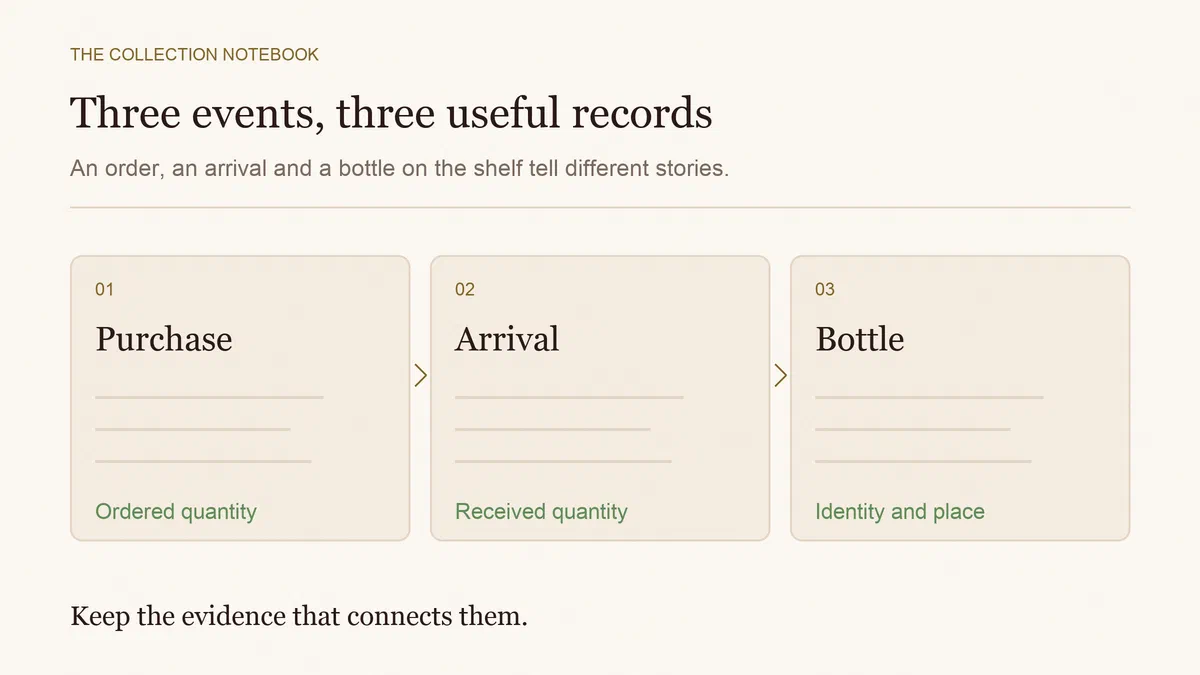
For individual stock tracking, print one inventory code for each physical bottle and keep that code attached to its existing record. Six bottles of the same wine need six identities if you want to distinguish their locations, condition and openings. Reprinting a damaged label should replace the label, not create another bottle.
A shop barcode usually identifies a product. Your own inventory label answers a narrower question: which of my bottles is this? Our wine-scanner comparison explains that distinction alongside label-photo recognition.
Choose a supported printing workflow
Official documentation checked on 10 October 2026 describes these options:
| Tool | Individual-label workflow | Important boundary |
|---|---|---|
| CellarTracker | Subscriber labels for individual bottles, with scanning for consumption and relocation | Select per-bottle labels; per-wine/size and location labels serve different jobs |
| InVintory | Paid printed labels, one generated code per bottle | Its inventory codes work with its scanner; commercial UPC/EAN does not |
| Sommo | Manual wine records and rack positions | No supported printed inventory-barcode workflow established |
See CellarTracker’s barcode guide, InVintory’s printing instructions and its scanning explanation. If scanning stock movements is essential, choose a documented system rather than assuming any wine camera will read your labels.
Check the bottle record before the printer
Confirm wine, vintage or release, size and quantity against the bottles. Then separate details that belong to each physical bottle: location, condition or acquisition history. Printing incorrect data neatly does not make it correct.
Here is an invented three-bottle example:
| Inventory reference | Wine and format | Physical difference | Expected action |
|---|---|---|---|
| B101 | Alder red 2020, 750 ml | Rack A, row 1 | Move to rack B |
| B102 | Alder red 2020, 750 ml | Rack A, row 2; marked capsule | Leave in place |
| B103 | Alder red 2020, 750 ml | Rack B, row 1 | Open for dinner |
All three share the product description. Only B101 moves, and only B103 leaves available stock. Printing the same generic wine code three times cannot distinguish those actions without another selection step.
Print a small batch and prove the match
Start with a few records. Use the paper and label layout specified by your app, check the print preview and follow its scale settings. Do not reduce the page until the labels look as though they fit: a tiny scaling change can misalign an entire sheet.
InVintory documents Avery sheets, skipping used cells and a PDF route on web. CellarTracker offers label options including CSV for mail merge and DYMO printing. Follow the chosen current instructions; printer compatibility is not established by this article.
Before attaching anything, scan each test label and read the opened record. Check the code and wine, not just the fact that a screen appeared. Add a short human-readable reference so a damaged code can still be looked up.
Choose placement and materials that suit your storage, without covering the producer’s vintage, lot or release details. Preserve original labels and capsules, especially on collectible wine. A removable tag may be more appropriate than an adhesive on original packaging; test your material rather than assuming it leaves no residue.
Moving and opening are different updates
For B101, scan the existing bottle and change its destination. Check that it remains in stock and that B102 has not moved with it. For B103, use the supported consumption/opening action and confirm the available count has fallen by one.
Keep a written expected result for the small test. The remaining count in the example is two bottles, located in two different racks. If the result is wrong, repair it before continuing with a shelf of bottles.
Avoid scanning first and deciding what happened afterwards. A code tells the app which record you selected; it does not observe whether the bottle moved, broke or was drunk.
Replace a damaged label without duplicating stock
Find the existing bottle through its human-readable reference, wine details and location. Reprint its existing inventory identity using the app’s supported option. Inspect the replacement before removing the old tag, then retain just one usable label on the bottle.
If the old label has detached and the bottle cannot be identified confidently, hold the update. Creating a new record and leaving the old one in stock produces a convincing but false extra bottle. Never recycle a consumed bottle’s code for a new purchase.
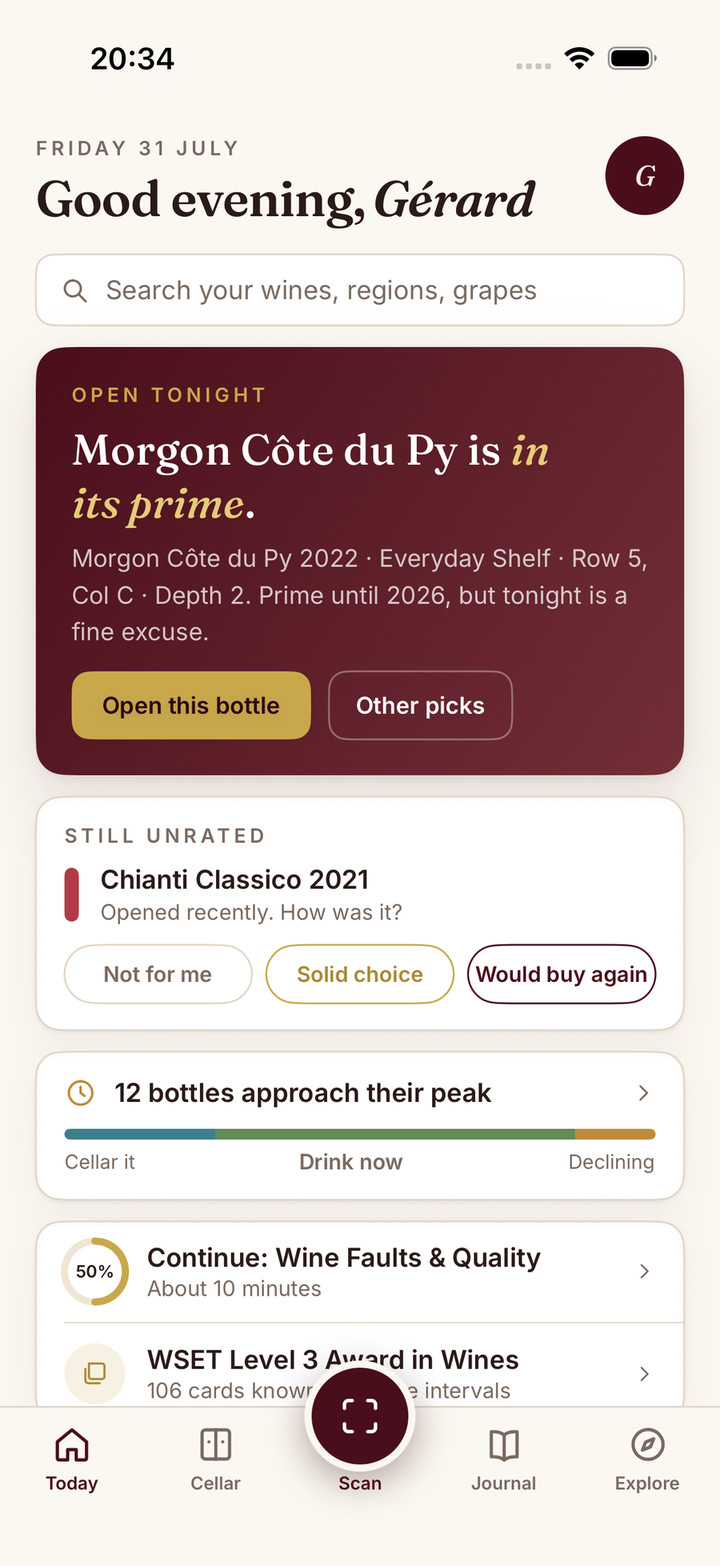
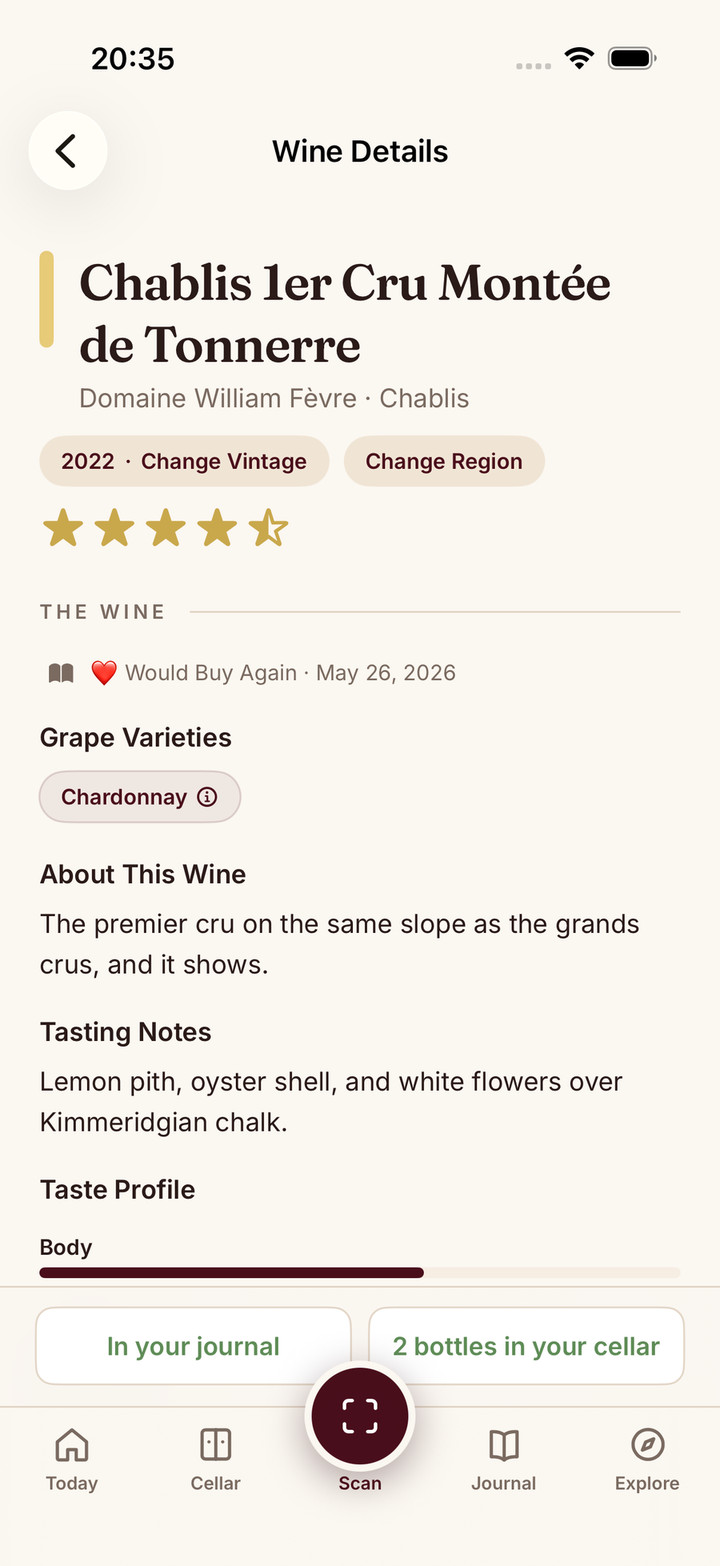
You do not need printed labels for every collection. A small rack with clear positions may work well with a simple inventory register. Sommo’s Premium cellar can maintain wine quantities and positions, but grouped stock is not a promise of independent barcode identities. If that simpler routine fits, start with one correctly located wine record. If it does not, retain the barcode system that supports your job.